The workbench
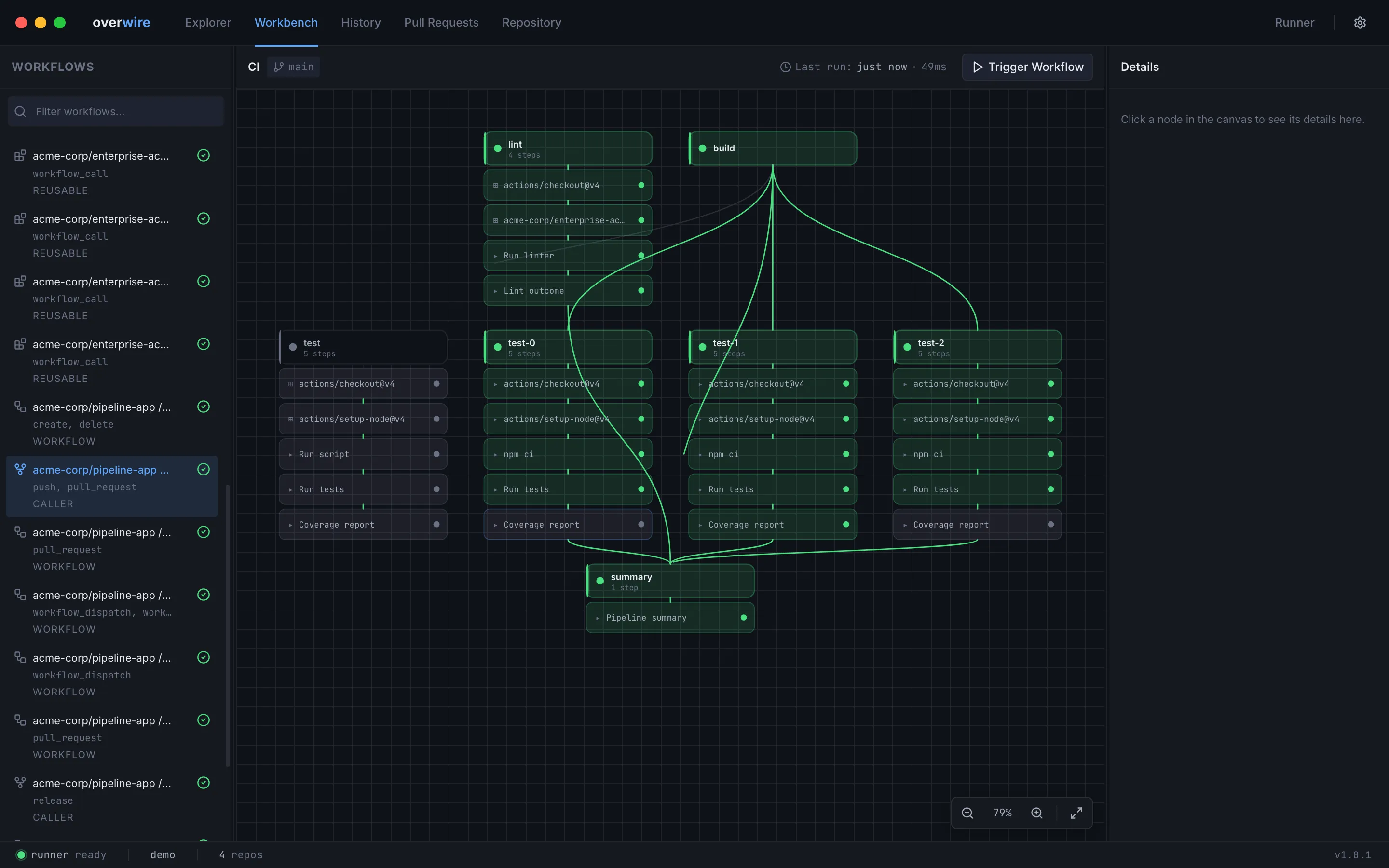
The workbench is the page you land on: a filterable workflow list on the left, an interactive DAG canvas in the middle, and a detail panel on the right. Select a workflow, trigger it, and watch the graph light up as jobs complete.
Workflow list
Section titled “Workflow list”The sidebar lists every workflow discovered in the workspace, with its triggers and kind (workflow, reusable, caller) under the name. In a multi-repo workspace each entry is prefixed with its owner/repo identity, and the filter box narrows the list across all repositories at once.
Hovering an entry reveals a view-YAML button that jumps to the file in the Explorer.
DAG canvas
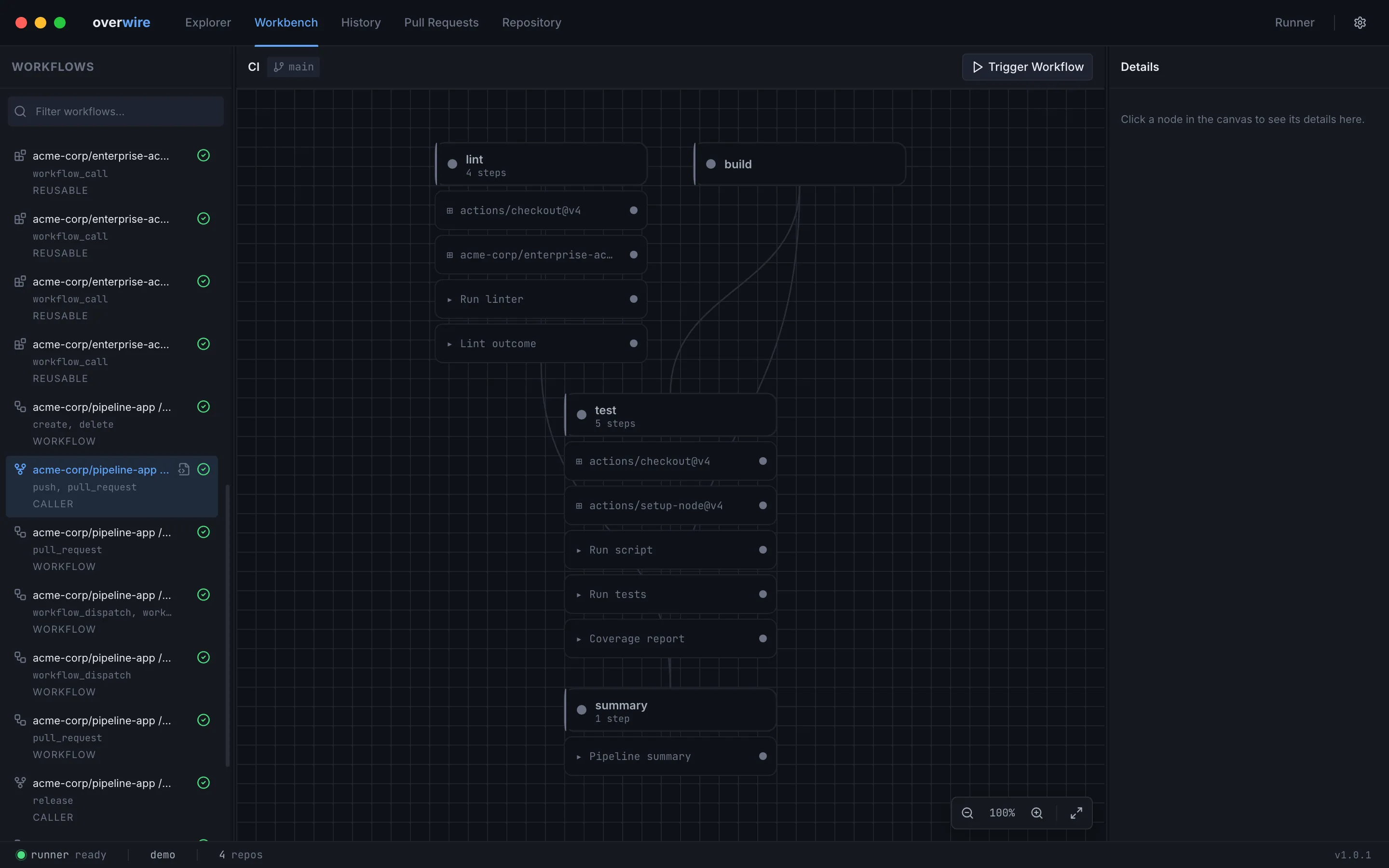
Section titled “DAG canvas”The canvas renders the selected workflow as a dependency graph: a header node per job, step nodes beneath it, and edges for needs: relationships. Matrix jobs appear as their expanded variants once a run starts.
- Pan and zoom. Drag to pan, scroll to zoom (15% to 300%). The corner toolbar has zoom buttons and fit-to-view, and the canvas re-fits when the graph structure changes.
- Status. Node accents follow the run: neutral while idle, then running, success, failure, or skipped per job and step.
- Selection. Click a job node to inspect it in the detail panel. Click a step node after a run and the runs panel opens that step’s detail view with logs and outputs.
Detail panel
Section titled “Detail panel”The right panel shows the selected node: job ID, display name, steps, and dependencies. With nothing selected it waits until you click a node in the canvas.
Triggering a run
Section titled “Triggering a run”Trigger Workflow in the toolbar starts a run using the event configured in the runs panel, and the toolbar shows when the workflow last ran. The bottom panel tracks the run from support plan to summary.
First-run checklist
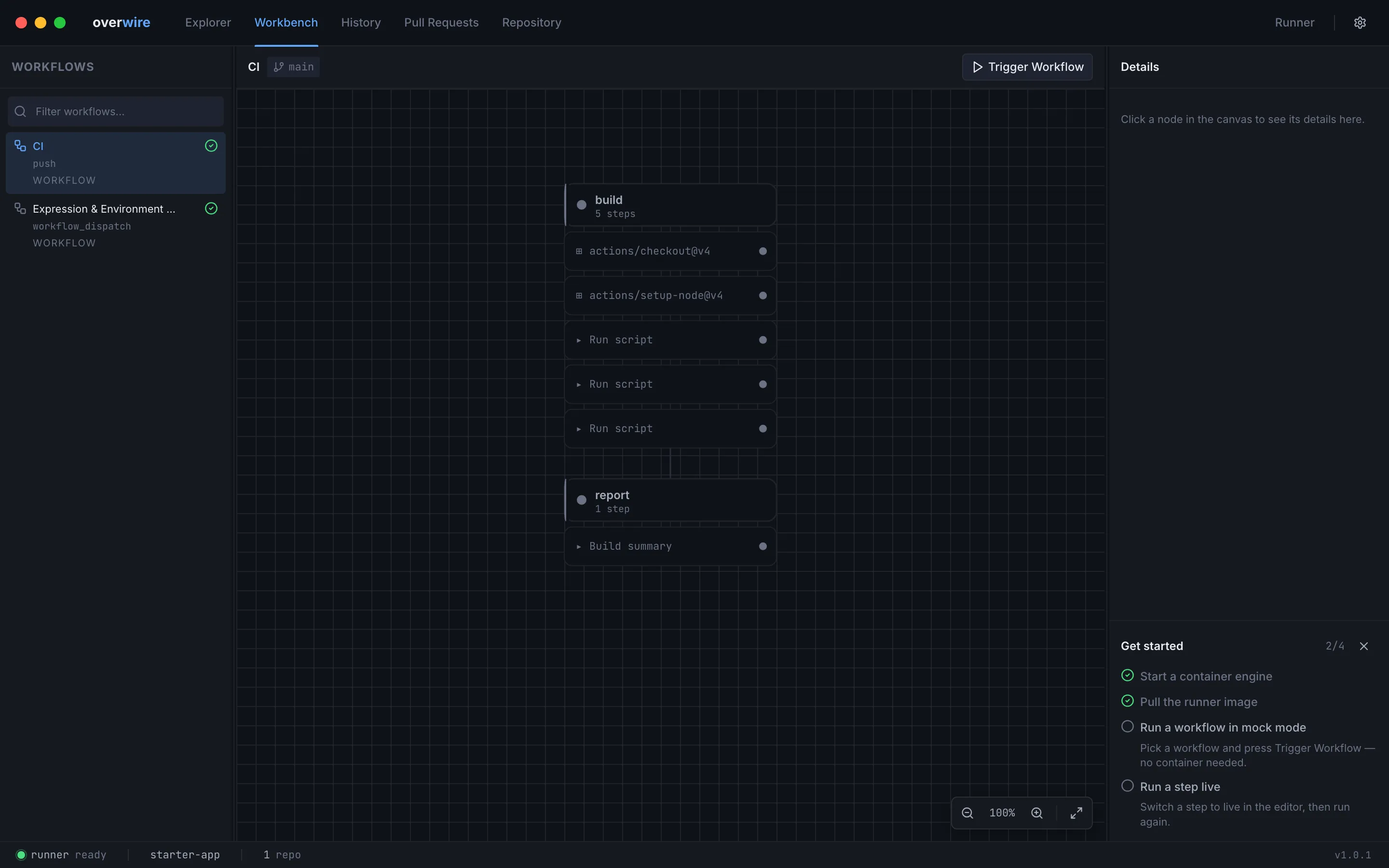
Section titled “First-run checklist”Until your first runs complete, a dismissible Get started card sits in the detail panel with four steps: a reachable container engine, the runner image, a first mock run, and a first live run. The first two are probed automatically; the card disappears for good once both run milestones are met.
Keyboard shortcuts
Section titled “Keyboard shortcuts”| Shortcut | Action |
|---|---|
⌘1 to ⌘5 | Switch between Explorer, Workbench, History, Pull Requests, and Repository |
⌘J | Toggle the runs panel |
⌘. | Cancel the active run |
⌘, | Open settings |
⇧⌘T | Cycle theme (dark, system, light) |
Overwire is not affiliated with, endorsed by, or sponsored by GitHub, Inc. “GitHub” and “GitHub Actions” are trademarks of GitHub, Inc.